Open media vault allows you to run a NAS server on your raspberry pi. the easiest way to install it on your pi is to install the default “lite” version of the OS. That is the one with no “Desktop” and then run the following script:
“Why!?!?” That’s what I was asking when my pi stopped working. After days of configuration and tinkering it just wouldn’t connect to the network anymore. I said to myself “Welp, I guess I’ll reinstall from scratch” and spent the next few hours installing and setting everything back up again.
Solution? Make a Backup using a Mac
Obviously this is what I should have done from the beginning. Now what’s the “right” backup solution?
The simplest one is to insert an identical sd card into a card reader and insert that into the USB port. And then running this command from the terminal while the pi is off. Replace /dev/mmcblk0 with the location of your pi installation drive, and /dev/sda with where you want to store it to.
# Warning: Do not do this on a raspberry pi system that is powered on. It might work, but might not since your system may write stuff at the same time.
sudo dd if=/dev/rdisk5 of=/dev/sda bs=4M status=progress
If you’d like to save the data to a file on your computer, use the following command. When running this on my own system, it took a long time (about 25 minutes or so), and doesn’t provide any output while running, so be patient with it when it is running. Source: https://forums.raspberrypi.com/viewtopic.php?t=46911
Then at the end, I swapped the SD cards to verify that the backup worked and it did!
For the people willing to install more stuff
Additionally if you installed zstd and pv, you can use combine them for a small and fast file with estimation replace 60906M with your estimate of the transfer size or use it without the -s and 60906M to just have a progress bar without a time estimate:
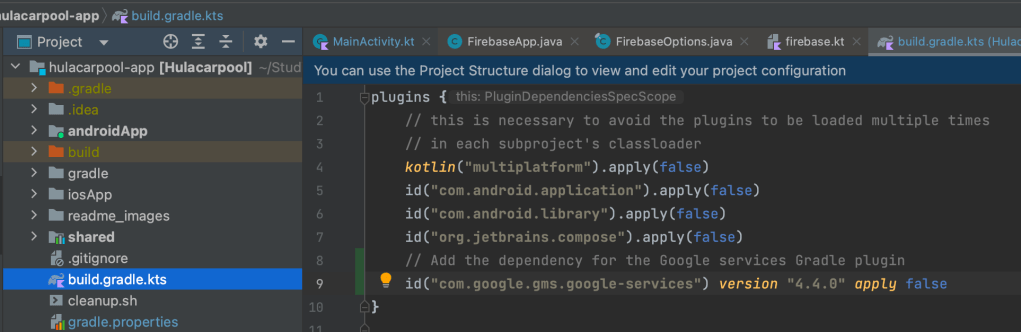
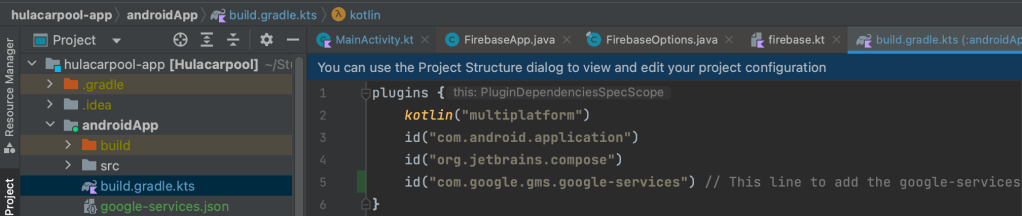
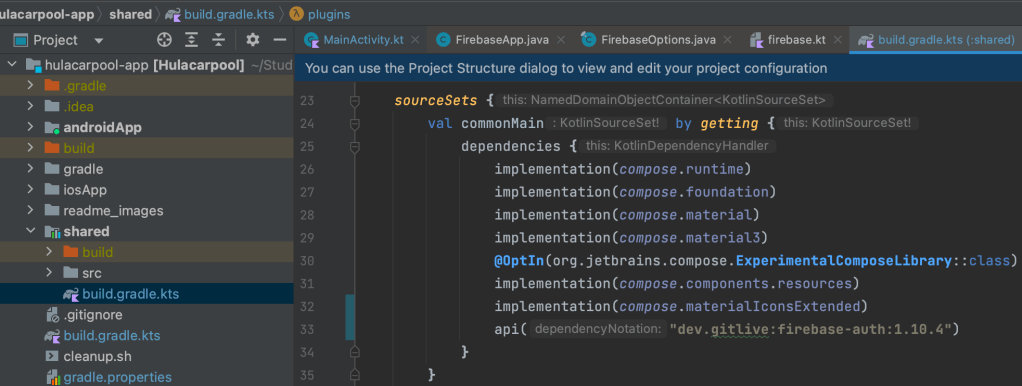
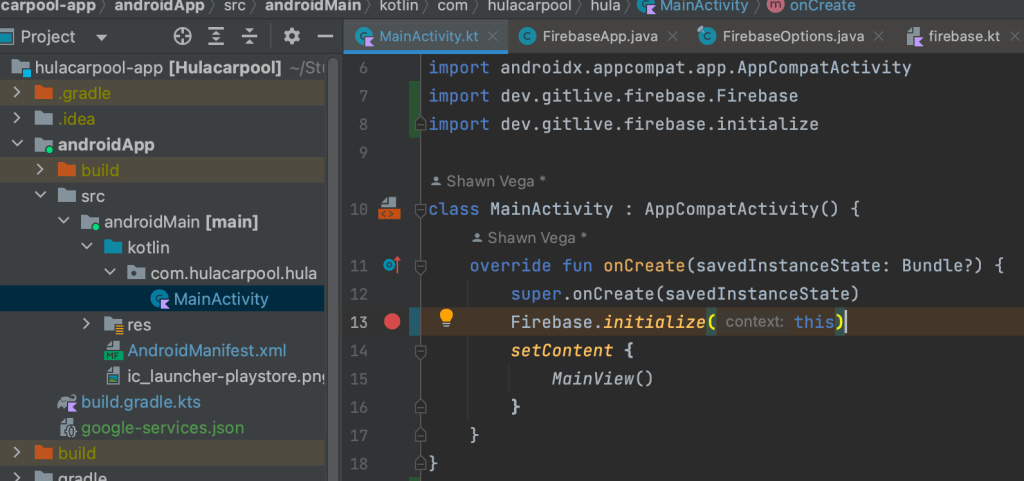
Step 6: And the following to the MainActivity.kt right after super.onCreate(savedInstanceState) and before the setContent block
Firebase.initialize(this)
After these changes you should be able to run the Android version of the app. An iOS build will fail until the next set of steps below are complete.
Adding the KMP firebase Authentication library to iOS
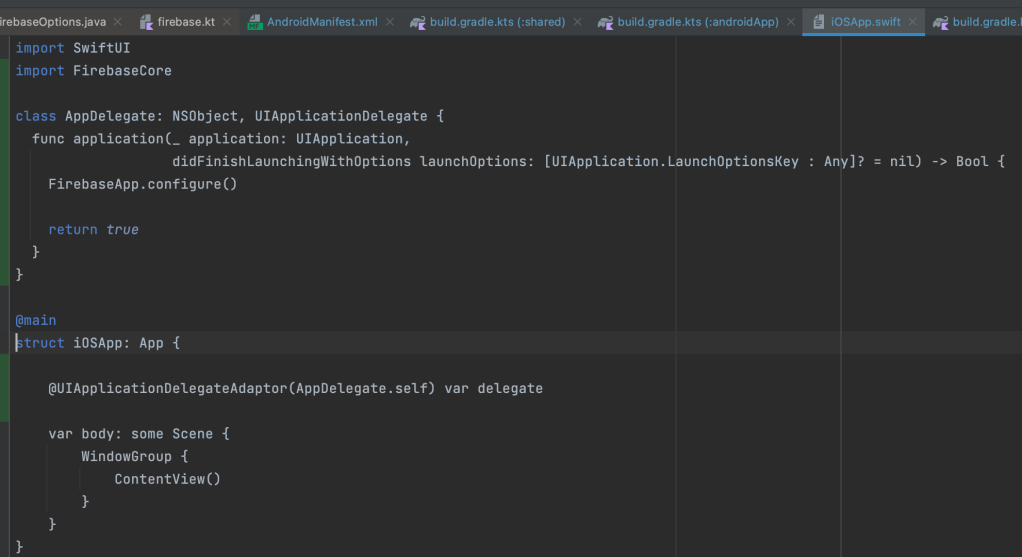
For the iOS app, you need to add the following lines to the iOSApp.swift the import FirebaseCore statement, the AppDelegate class and the line in the code below that starts with @UIApplicationDelegateAdaptor
@UIApplicationDelegateAdaptor(AppDelegate.self) var delegate
var body: some Scene { WindowGroup { ContentView() } } }
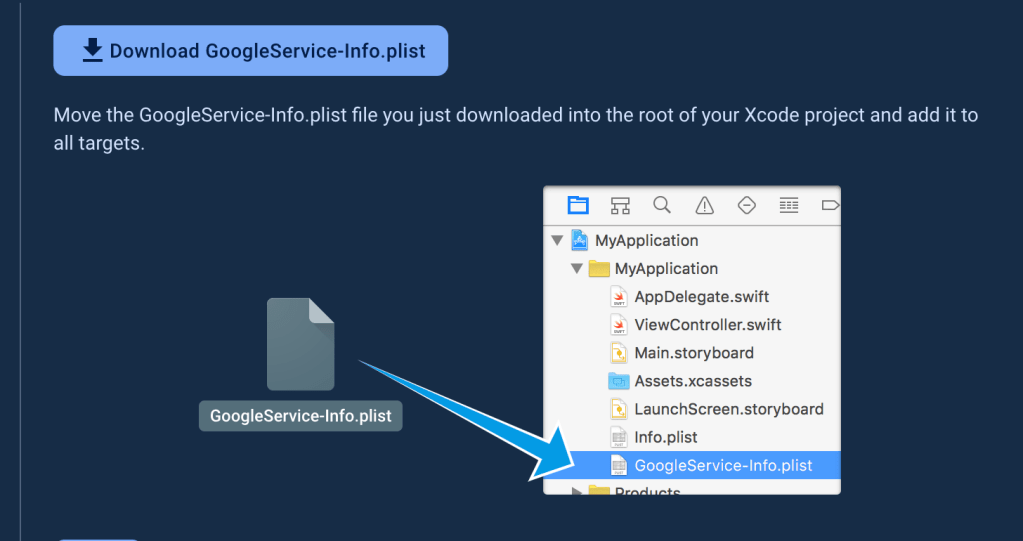
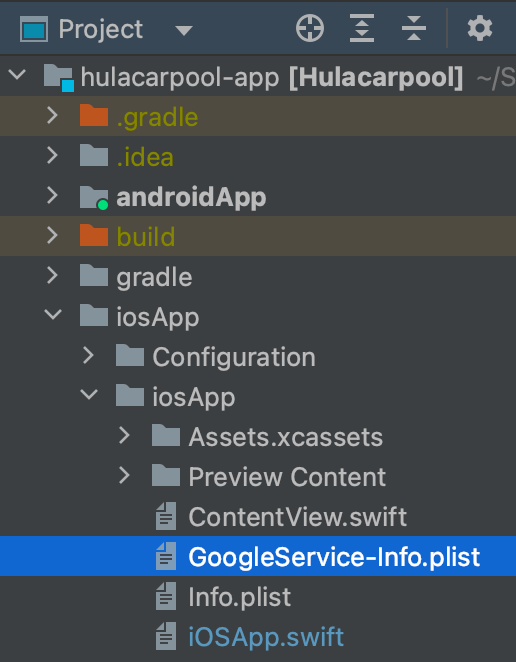
You’ll need to register your app in firebase just like the Android app. Then you’ll need to copy the GoogleService-info.plist to the right spot in the file system as shown below.
Next open the iOSApp in xcode by navigating to the iOSApp folder and double clicking on the iosApp.xcodeproj file.
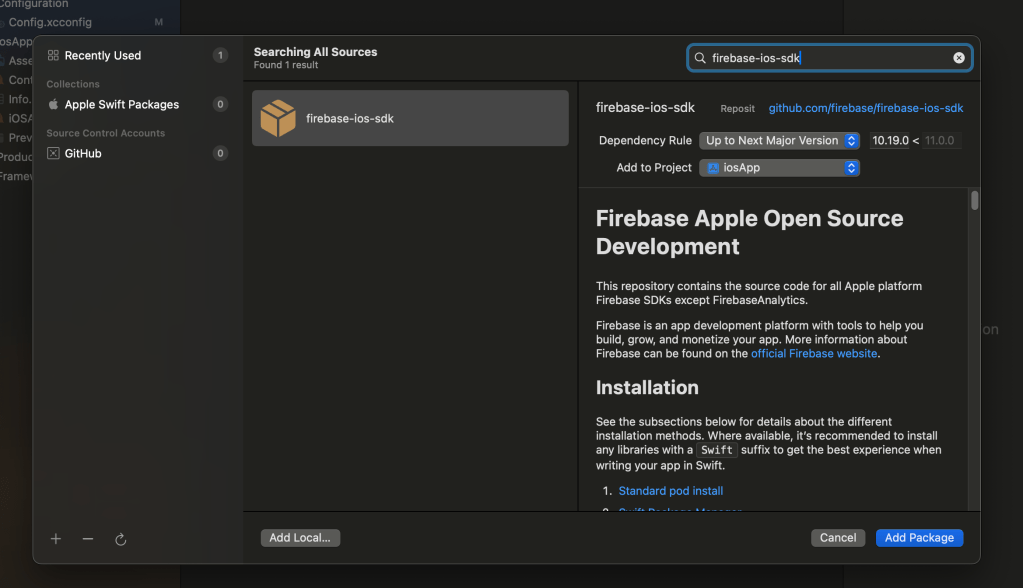
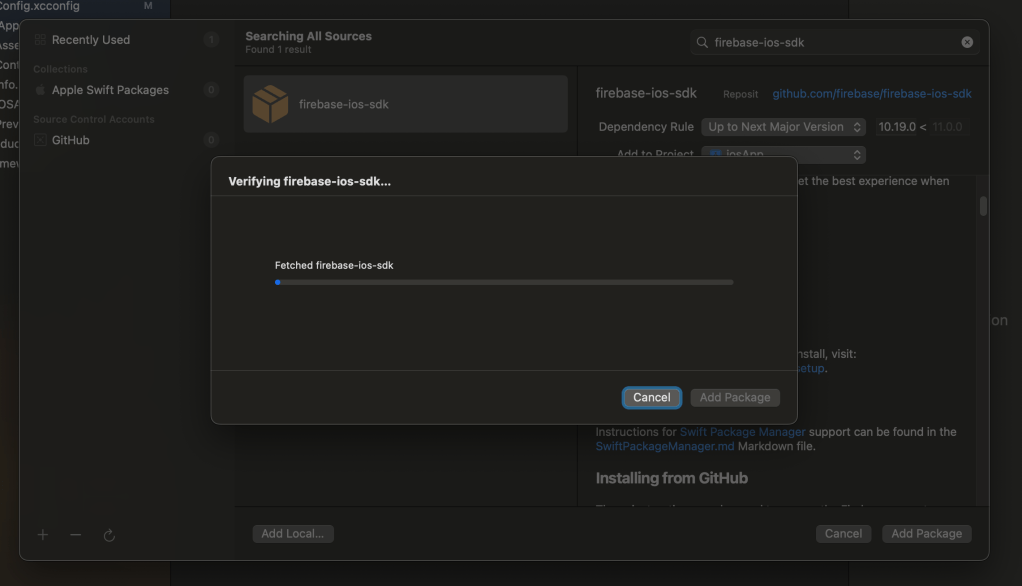
Once open, I had to add the firebase-ios-sdk package to the iOS app
Then click the “Add Package” button
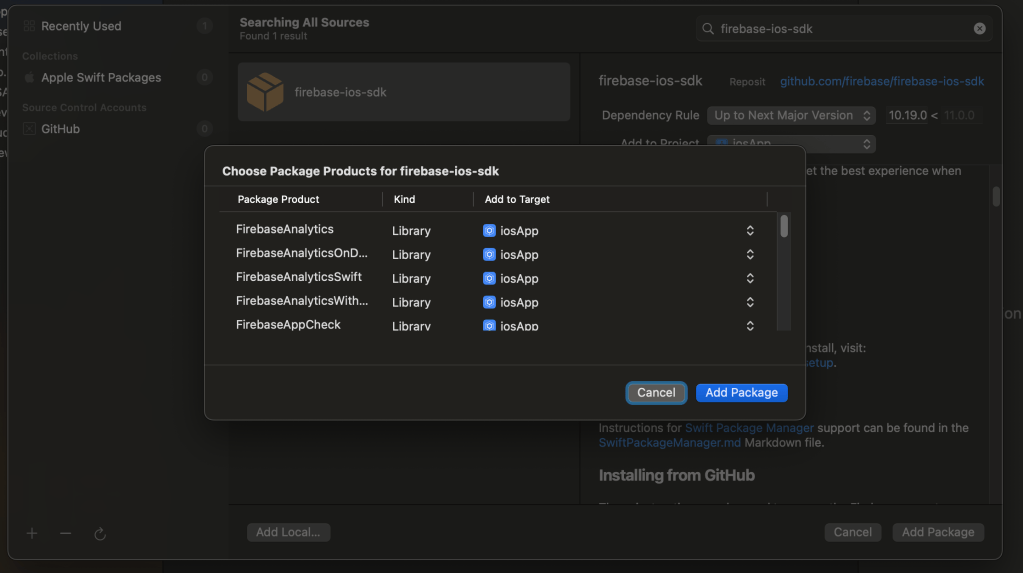
Then click the libraries that you want to add, and click “Add Package”
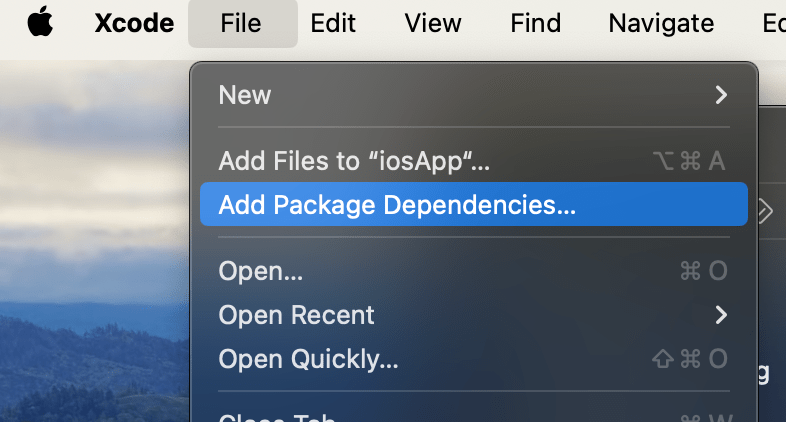
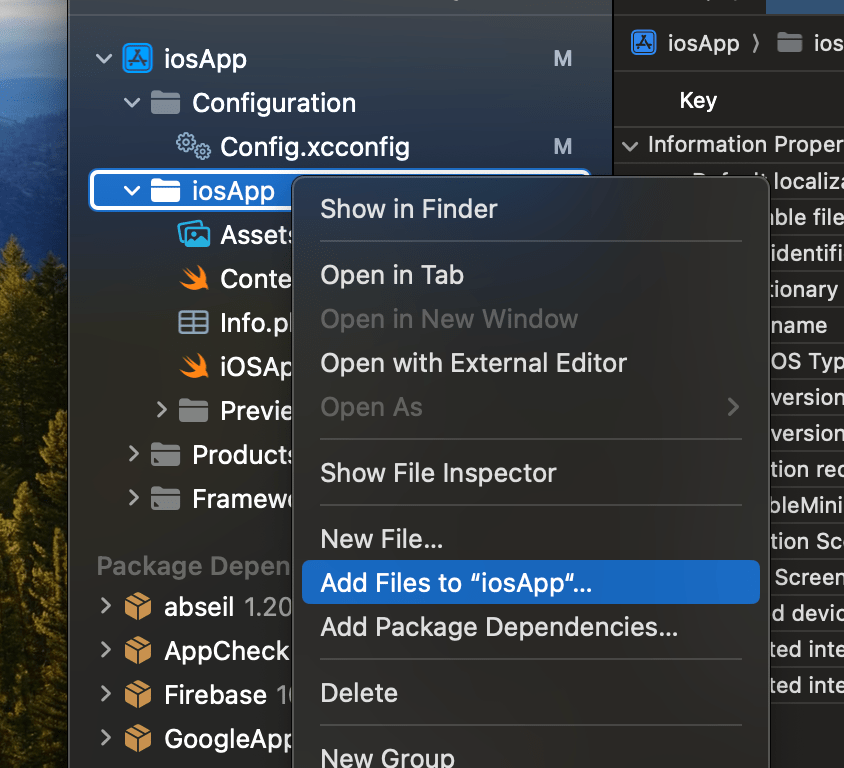
The builds for iOS were still failing until I did the following steps. For some reason it wasn’t detecting the GoogleServices file. So I right clicked the iOSApp folder in xcode, and then “Add Files to “iosApp””
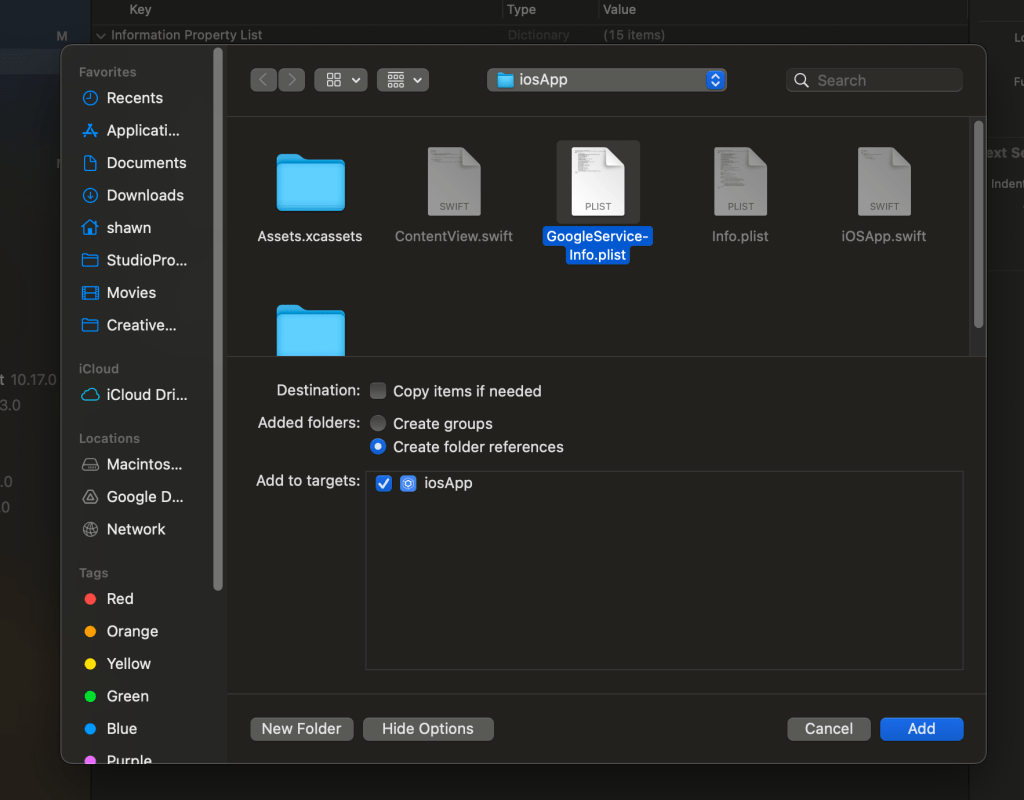
When the file dialog opens, just select the GoogleServices-info.plist file, and click “Add”.
So I’ve been playing around with QR codes. I wanted to know how to generate different data that can be read by a phone. I found the following page that describes how to format the data using text only. https://github.com/zxing/zxing/wiki/Barcode-Contents
Save space using all caps
QR codes have a special format for data that is in all caps and if you use it, the QR code will use less data. My understanding is that all you have to do to use it is to write the text in all caps (can include numbers and these symbols $, %, *, +, -, ., /, :, and space) and the QR code generator should automatically figure out how to represent it using less data. The downside is that some urls are case sensitive, so make sure to test the url before you print it. “Alphanumeric mode is for the decimal digits 0 through 9, as well as uppercase letters (not lowercase!), and the symbols $, %, *, +, -, ., /, and : as well as a space.” Source: https://www.thonky.com/qr-code-tutorial/data-analysis Further reading here https://www.thonky.com/qr-code-tutorial/introduction
So when setting up my ubuntu server. I was running into issues connecting from different machines on my local network. I ran a port scan using nmap to see that many ports were filtered. I tried many things, but in the end one simple command fixed it.
To make this, I followed the guide posted here. https://docs.portainer.io/v/ce-2.9/start/upgrade/docker The latest portainer at the time of writing is portainer version 2.14.1 please replace that string with the latest version when using the following commands.
To login to portainer, the instructions say to use https://localhost:9443 of course I’m logging in remotely, so I thought that I could just replace localhost with the ip address of my server, but that didn’t work, but port forwarding with an ssh tunnel did work. To forward the port, I had to run the following command
ssh -L localhost:9443:localhost:9443 [email protected]
in chrome: https://localhost:9443
Only after running that command, could I use the localhost address in chrome on my remote machine.



 shawnsv.com