So I just started a new app that is being built for Android and iOS. I’m building it using kotlin multi-platform (KMP). I started it by following a guide on jetbrains’ website. I started it by following this guide. https://www.jetbrains.com/help/kotlin-multiplatform-dev/multiplatform-getting-started.html#next-step after kdoctor said that my machine was ready for cross platform compilation I moved on to cloning this repo. https://github.com/JetBrains/compose-multiplatform-ios-android-template This app is using firebase so I had to integrate it into the app. I found this library which is a cross platform firebase library. https://github.com/GitLiveApp/firebase-kotlin-sdk Getting it set up was a bit difficult as the app kept crashing everytime I tried to use firebase for anything. I later found this guide but as it is the only one online, and seems to miss a few pain points that I found. https://medium.com/@carlosgub/how-to-implement-firebase-firestore-in-kotlin-multiplatform-mobile-with-compose-multiplatform-32b66cdba9f7 So I’m writing this to document my process and and pain points so that if anyone else wants to do this they can. Also, it should be noted that I started with the Authentication library.
Adding the KMP firebase Authentication library to Android
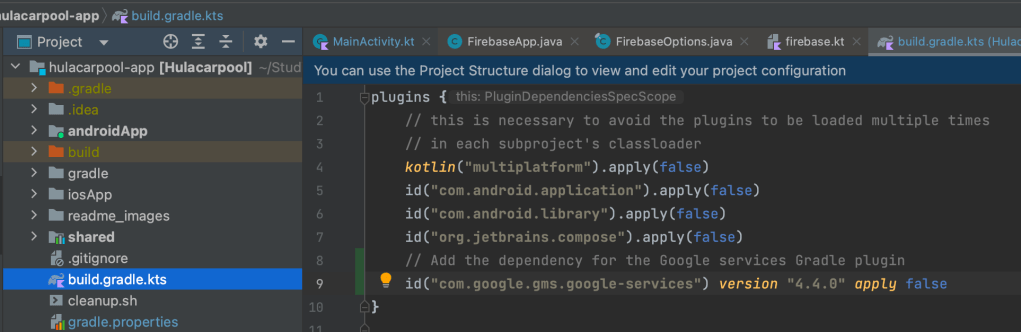
Step 1: add this line to the plugins block of the project level build.gradle.kts that file can be found in the project root directory.
id("com.google.gms.google-services") version "4.4.0" apply falseStep 2: Add the following to the plugins block of the androidApp build.gradle.kts
id("com.google.gms.google-services") // This line to add the google-services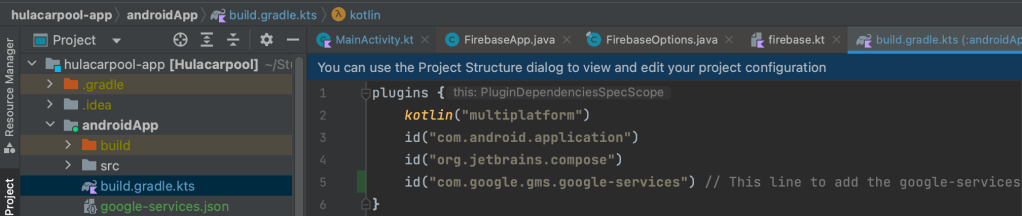
It’s also a good time to make sure that the “applicationId” in that build.gradle.kts matches what you intend to use on firebase.
Step 3: Add this to the shared module build.gradle.kts inside of the kotlin -> sourceSets -> commonMain -> dependencies blocks
api("dev.gitlive:firebase-auth:1.10.4")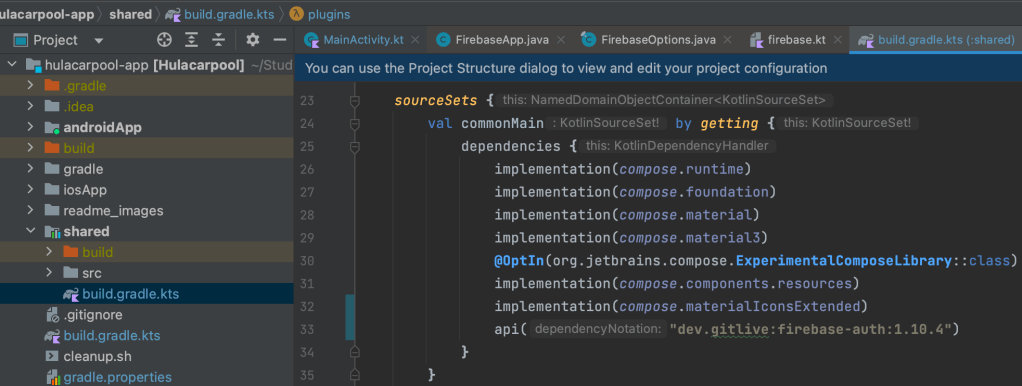
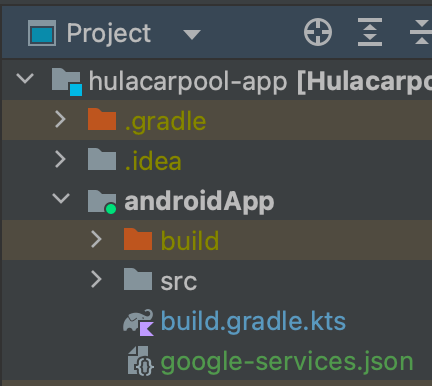
Step 4: Add your android app to firebase and put your google-services.json file in the androidApp module root folder as is shown below.
Step 5: Add this to your AndroidManifest.xml
    <uses-permission android:name="android.permission.INTERNET"/>
    <uses-permission android:name="android.permission.ACCESS_NETWORK_STATE"/>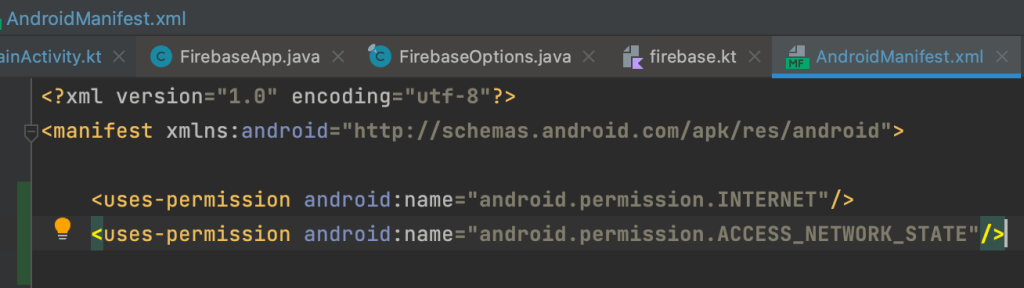
Step 6: And the following to the MainActivity.kt right after super.onCreate(savedInstanceState) and before the setContent block
Firebase.initialize(this)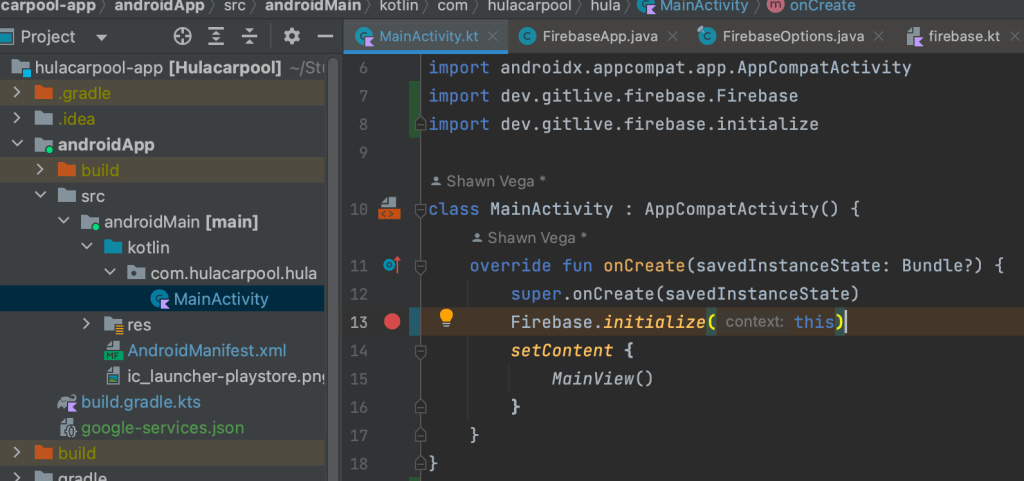
After these changes you should be able to run the Android version of the app. An iOS build will fail until the next set of steps below are complete.
Adding the KMP firebase Authentication library to iOS
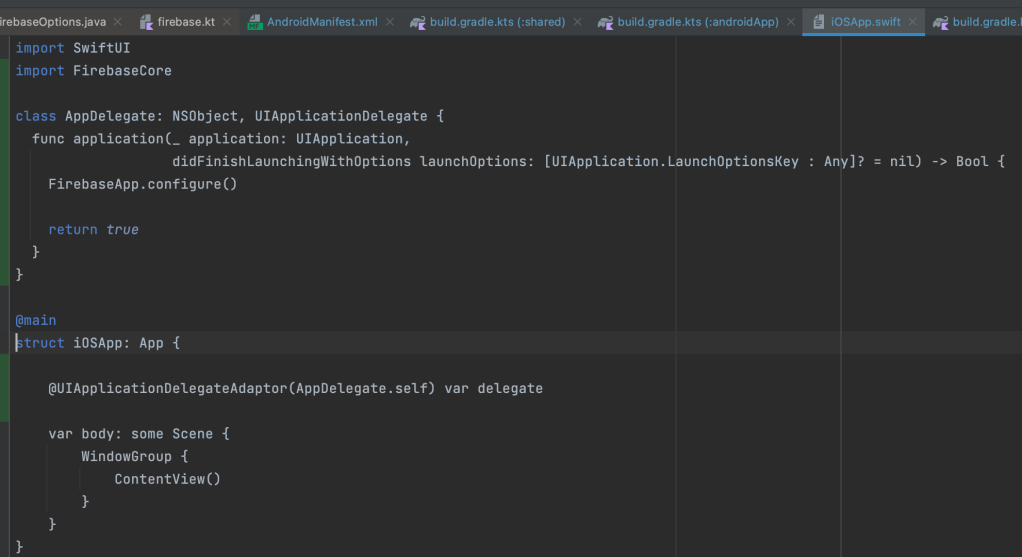
For the iOS app, you need to add the following lines to the iOSApp.swift
the import FirebaseCore statement, the AppDelegate class and the line in the code below that starts with @UIApplicationDelegateAdaptor
import SwiftUI
import FirebaseCore

class AppDelegate: NSObject, UIApplicationDelegate {
  func application(_ application: UIApplication,
                   didFinishLaunchingWithOptions launchOptions: [UIApplication.LaunchOptionsKey : Any]? = nil) -> Bool {
    FirebaseApp.configure()

    return true
  }
}

@main
struct iOSApp: App {

    @UIApplicationDelegateAdaptor(AppDelegate.self) var delegate

	var body: some Scene {
		WindowGroup {
			ContentView()
		}
	}
}
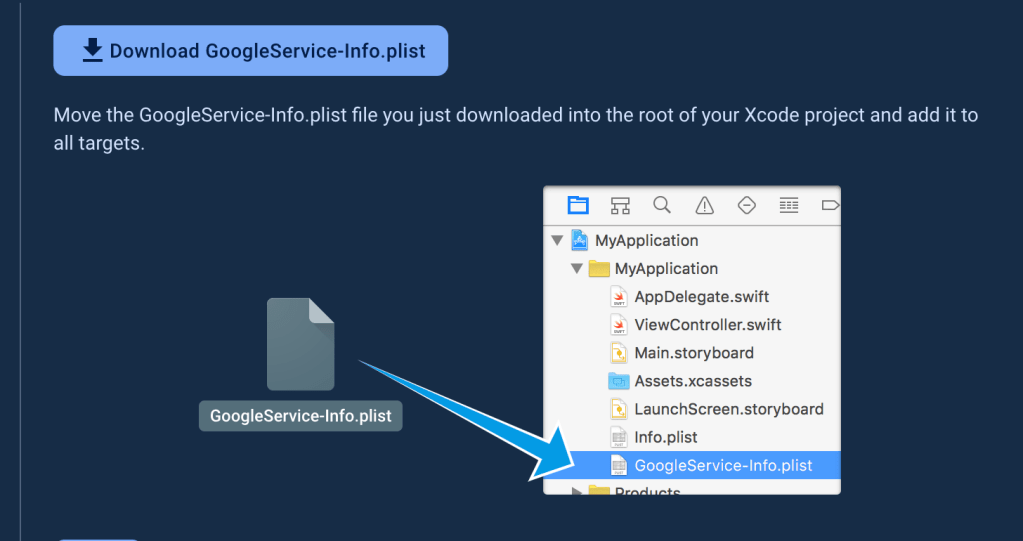
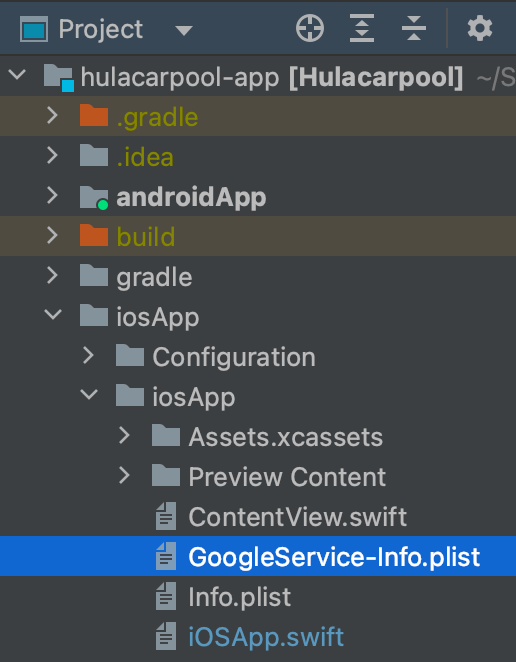
You’ll need to register your app in firebase just like the Android app. Then you’ll need to copy the GoogleService-info.plist to the right spot in the file system as shown below.
Next open the iOSApp in xcode by navigating to the iOSApp folder and double clicking on the iosApp.xcodeproj file.
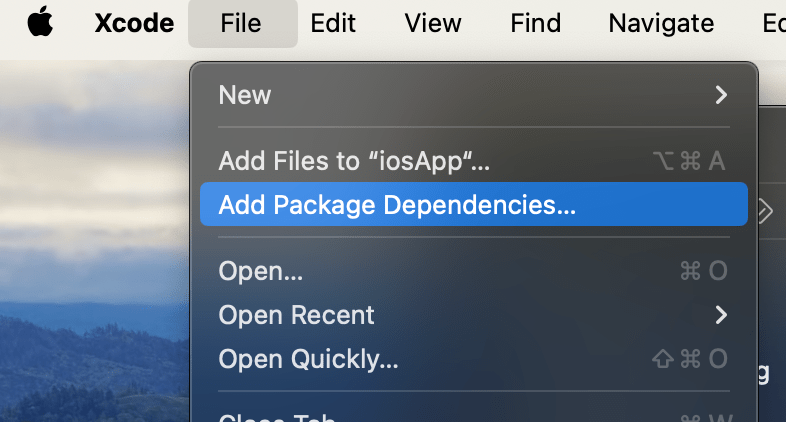
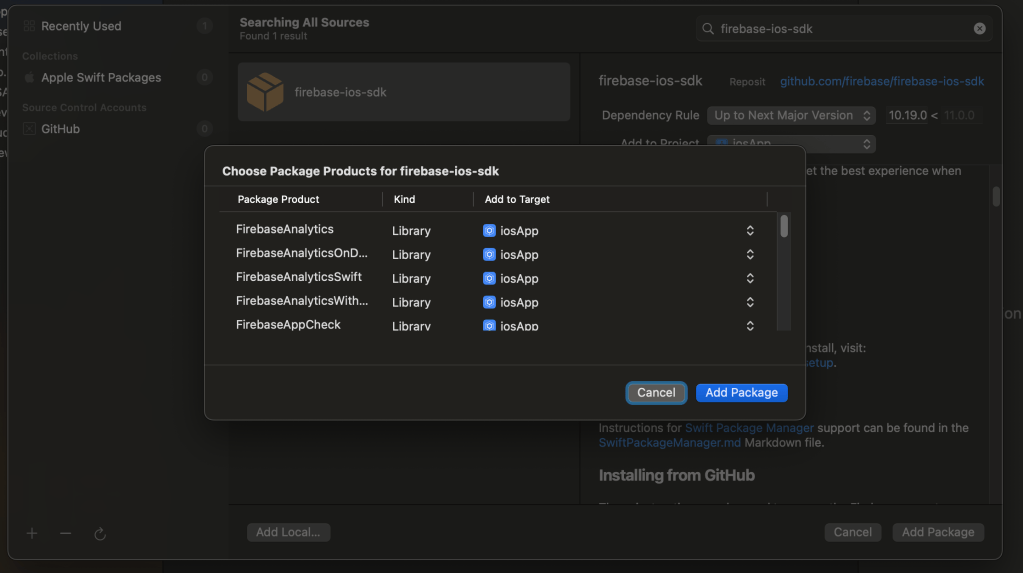
Once open, I had to add the firebase-ios-sdk package to the iOS app
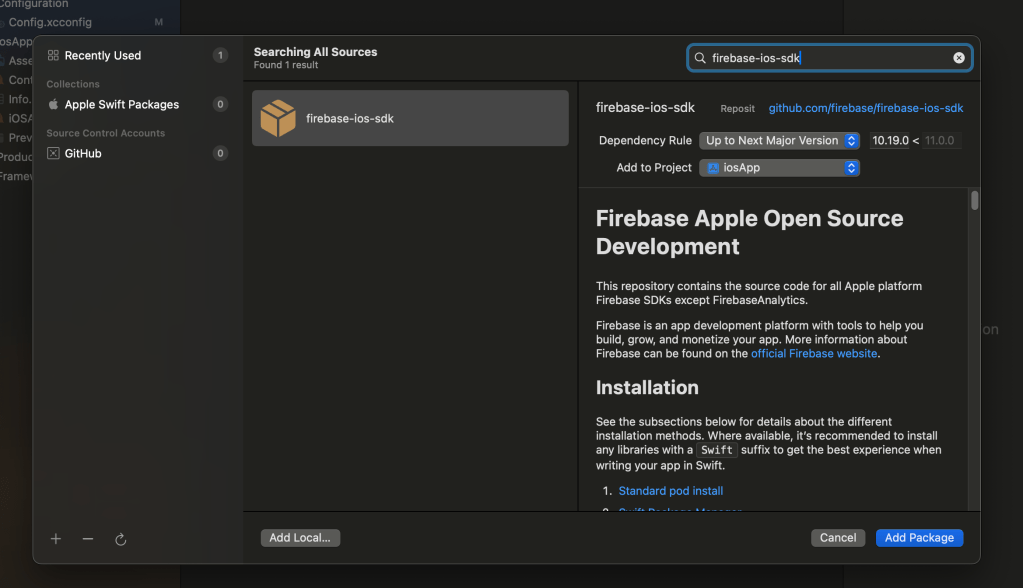
Then click the “Add Package” button
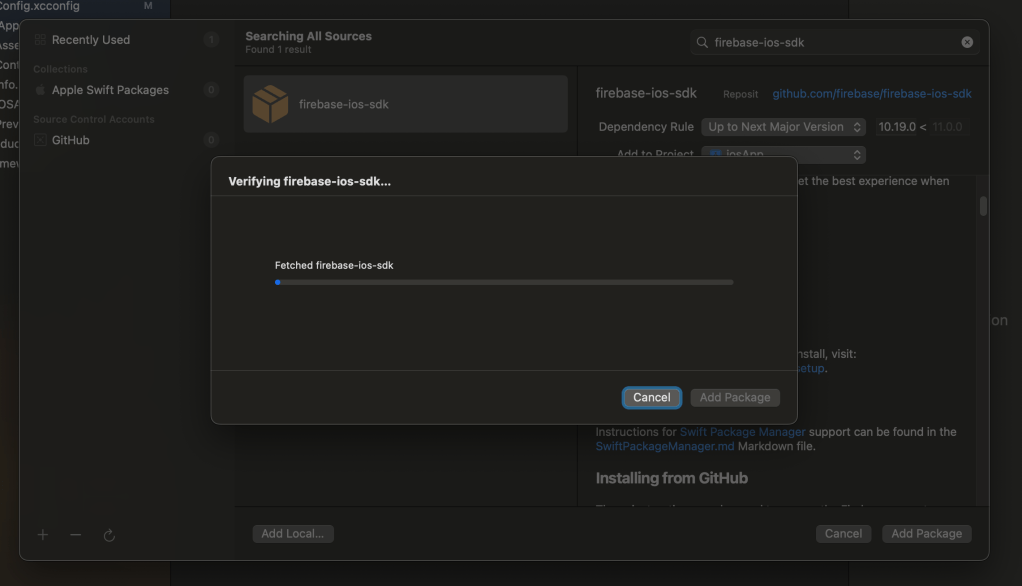
Then click the libraries that you want to add, and click “Add Package”
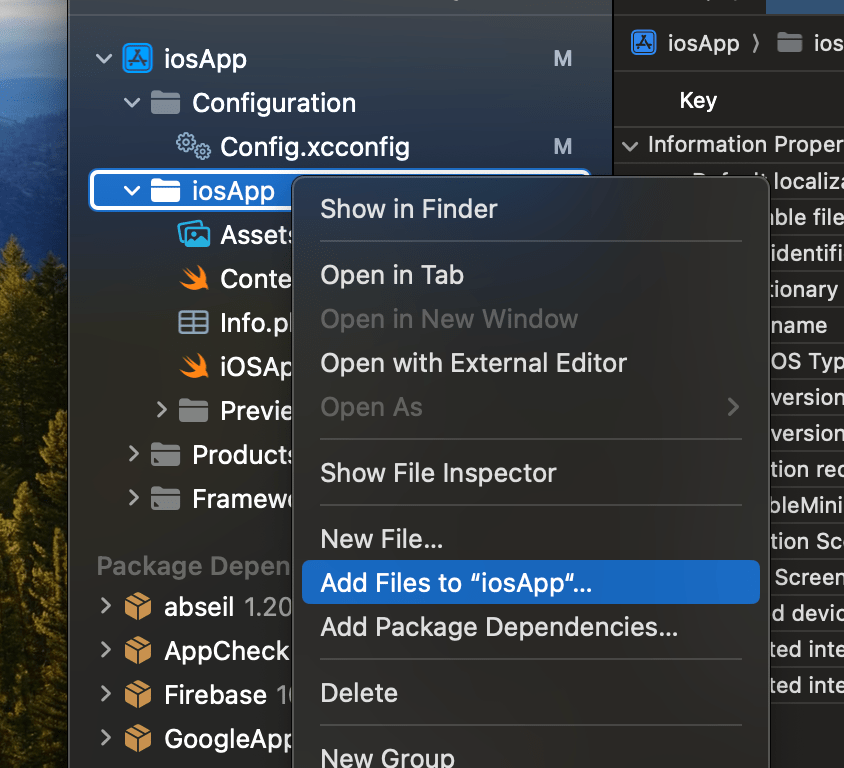
The builds for iOS were still failing until I did the following steps. For some reason it wasn’t detecting the GoogleServices file. So I right clicked the iOSApp folder in xcode, and then “Add Files to “iosApp””
When the file dialog opens, just select the GoogleServices-info.plist file, and click “Add”.
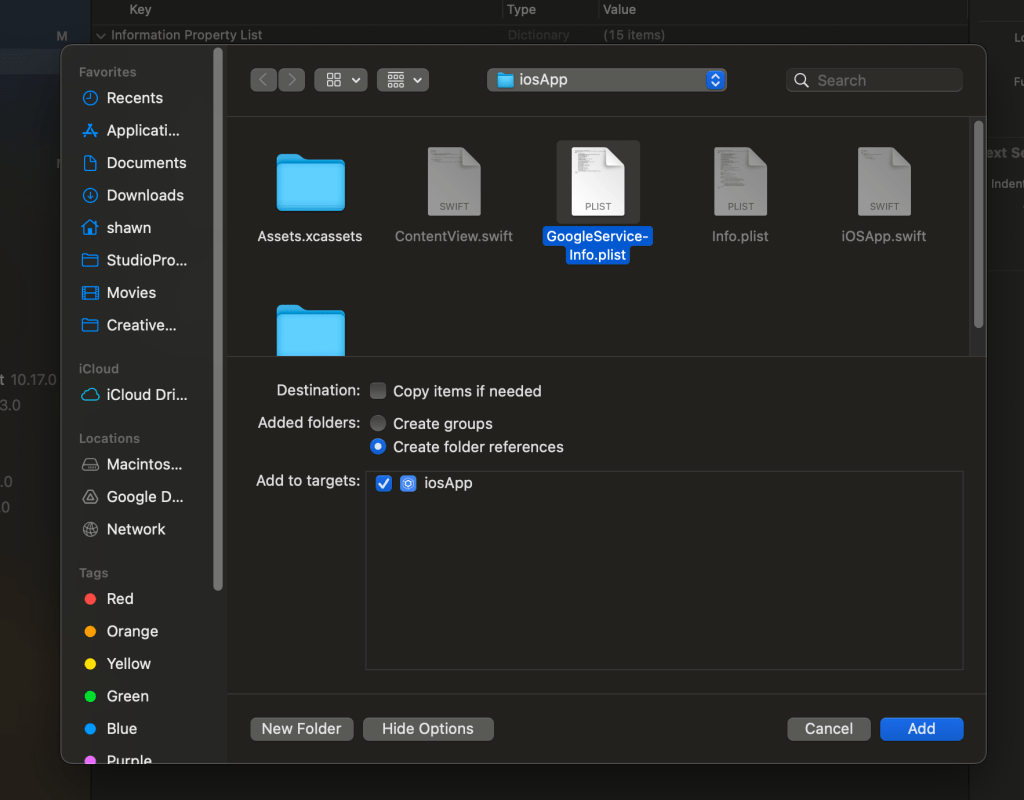
Finally, the iOS app should build properly.
 shawnsv.com